¶ Overview
This guide is a step by step tutorial on using our ticketing software.
¶ Devices
Scanning devices can range from tablets to laptop computers with handheld scanners.
-
Tablets use the built-in camera to scan. Just hover over the ticket and it will scan automatically. Make sure auto-scan is on... the viewfinder icon in the bottom right should be green.
-
Laptops will have an attached physical scanner. Just pick up the scanner, point it at the ticket (paper or phone) and squeeze the trigger to scan.
In both cases, a beep will emit, and the screen will show you the result, which will either be:
- VALID
- ALREADY SCANNED
VALID response means their ticket is good, and they can get a wristband/merch product.
ALREADY SCANNED means that the ticket was already redeemed, and is no longer valid.
¶ Technical Details
Pretix:
A basic understanding of computers and devices is important. The software is pretty self-explanatory. If you want to take a deeper dive, then you can look into the Pretix website for more information. That's what we're using now for ticketing.
Wifi:
The scanning devices need to be online to work.
We will have wifi hotpots available for internet that should be already connected to our devices. If they are not connected, please try to join the wifi network (SSID and password are typically on the back of the device, or available from the menu).
Phones:
You can also use your own mobile device by downloading the pretixSCAN app on Android or iPhone. Once downloaded, you will need to scan a secret QR code that we will have printed on-site. This can be a lifesaver if we run into equipment/hotspot issues.
¶ Step by Step
Here is a step by step tutorial going over the entire scanning process.
¶ Main Screen
This is what the main screen looks like.
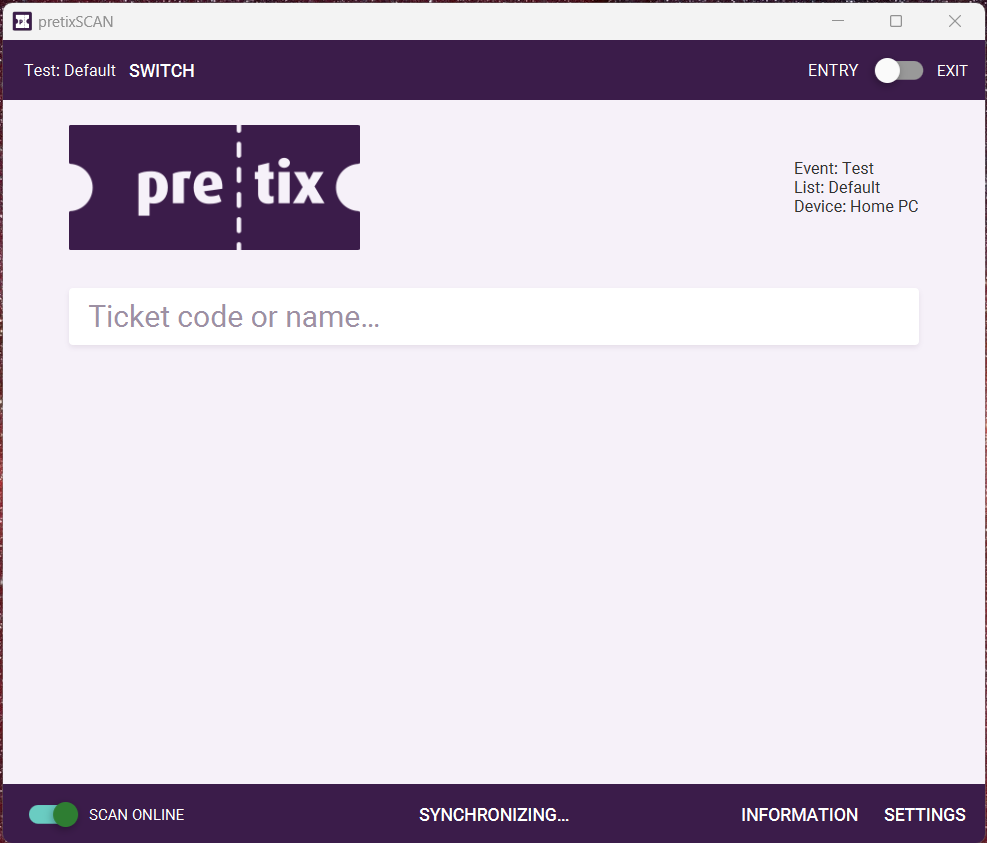
From this screen we can check attendees in by either:
- Scanning in their ticket
- Typing in their Ticket code or name
¶ Checking Technical Details
We want to check a few things to do a sanity check and make sure everything is working.
First, always make sure that scans are set to ENTRY mode. This is a toggle switch in the top right corner. We don't use EXIT scanning currently.

We also want to make sure that the scanner is ONLINE, and that it's synced up or syncing. Check this in the bottom of the screen.

99% of the time these will all be correct. To fix/change, just toggle the switches by clicking/tapping.
If the device is not working at all, make sure it's connected to wifi, and then try rebooting it.
¶ Scanning and Searching
Scan the ticket if they have one. That's the easiest way.
This is what tickets look like:
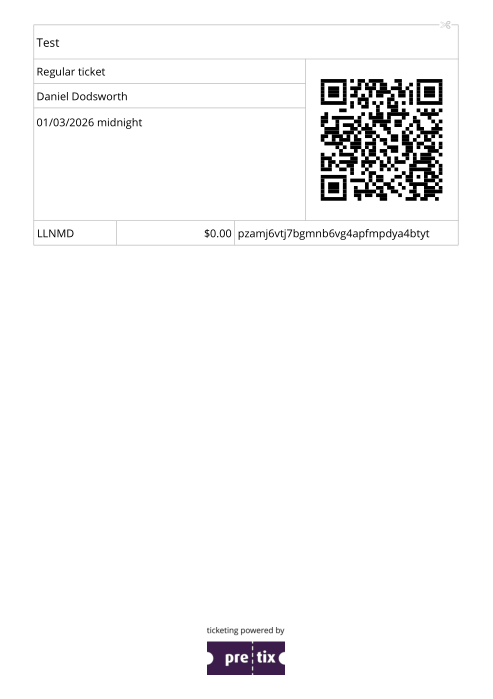
The ticket code is towards the bottom left of the main ticket area. In this example, it's LLNMD. The ticket should also have their name and what type of ticket they have. The QR code is on here, and the long code starting with pzam is the actual QR code data (not important for us really).
Merch tickets look the same, but will say something like "Merchandise Pack" for the ticket type.
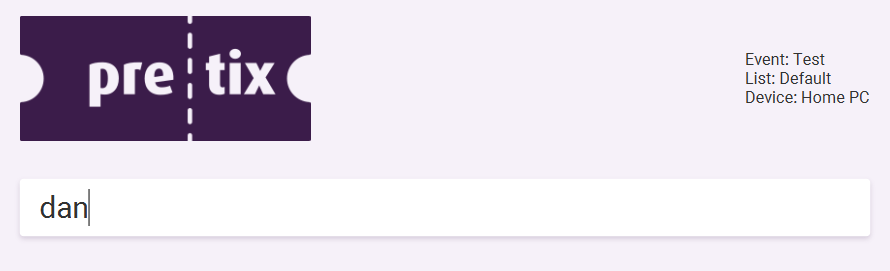
If they can't find their ticket, you can also look them up by name or their ticket code. Just type either one into the center input box and tap ENTER.
On tablets and phones, you will need to tap the magnifying glass in the top bar to access search.
Here we can see a ticket that's labeled VALID.
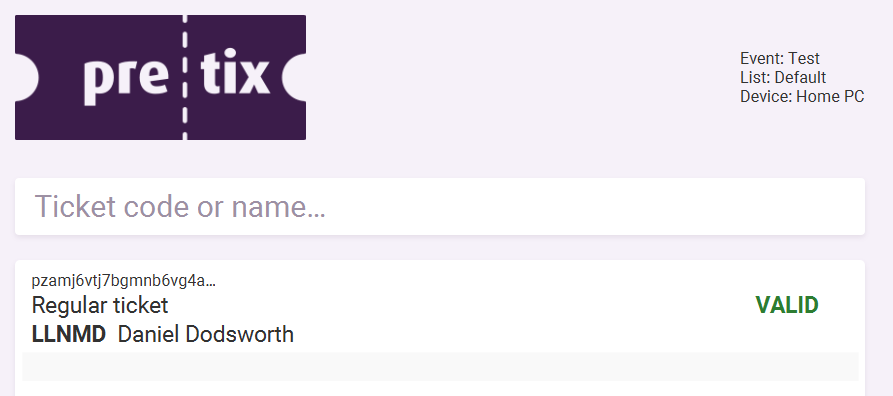
Double click on that ticket to redeem it.
You will see a green window pop up saying VALID - along with the ticket type (in this case, a Regular ticket). The ticket will also change to REDEEMED in the search results.
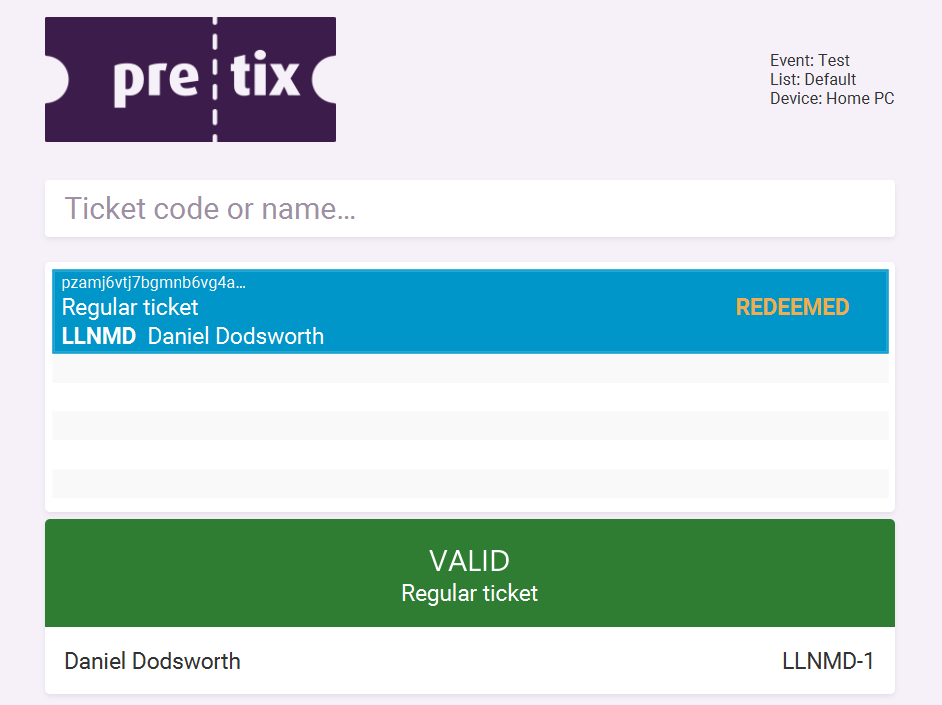
If you're using the handheld scanner, these same popups will appear.
If they have merch tickets, scan those in as well.
¶ Wristbands and Merch
For each VALID ticket and merch ticket, provide attendees with wristbands and merch, respectively.
It's a good idea to have an assembly line of help.
One person should be preparing wristbands by tearing off the perforated sheets (up to 10 ready at a time). This person (or another if we're fully staffed) should also help attendees put the wristbands on, and locate/hand out merch.
One person should be scanning tickets.
This way you're not stuck doing everything.
We try to staff the Registration booth so there's at least 2-3 people at any given time.
¶ Previously Scanned Tickets
You may search a name/ticket code and find that it's already been REDEEMED.
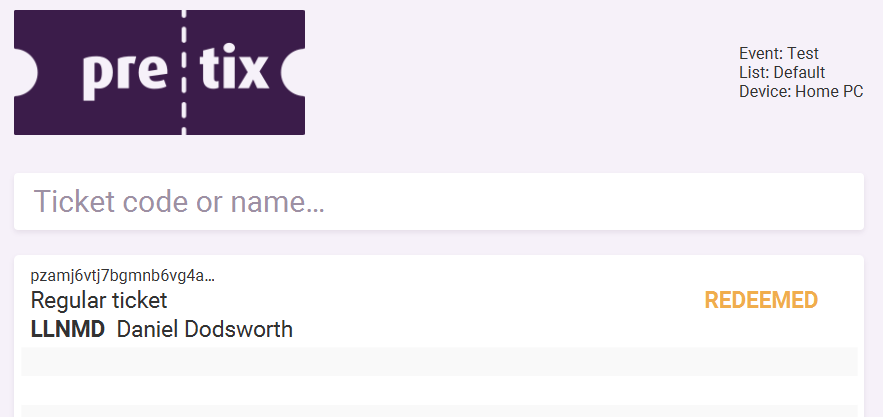
If using the scanner, a message will pop up saying ALREADY SCANNED.
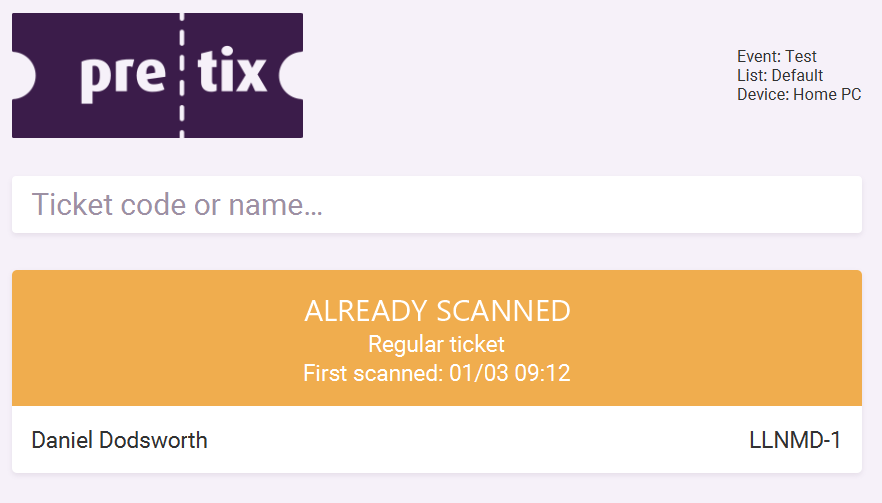
In these cases, do NOT give them a new wristband. We want to make sure that only valid ticketholders get in. This is a safety issue primarily.
They will need to buy a new ticket if theirs is not valid.
If they give you any trouble, radio for help, or flag down an officer.
¶ Bring Your Own Device
If you want to use your own cell phone to scan tickets, you can. This is not mandatory, but may be very helpful in case we lose internet, or if the AITP devices break down.
Begin by downloading the pretixSCAN app on Android or iPhone.
Once downloaded, you will need to scan a secret QR code that we will have printed on-site.
Open the app, scan the secret QR code to authenticate the device, and tap through two screens.
First, select the event (it should be the only one in the list)
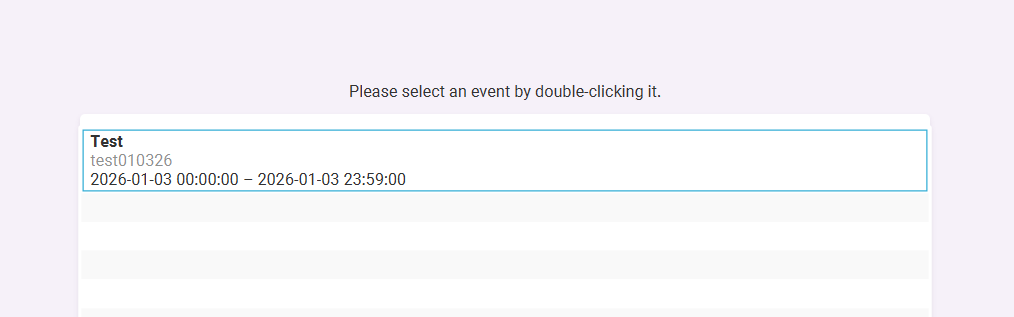
Next, tap on "Default," which should be the only option.

Now you're ready to start scanning!
¶ Technical Issues
When in doubt:
- Make sure the device is connected to wifi
- Reboot the device
- Radio for help
¶ Next Department
Click the next role to learn more about it.
- Placement Get exhibitors to the right spot.